TL;DR: Use GA4 Enhanced Measurement for outbound links. For internal buttons, use Google Tag Manager (GTM) to create a generic Click Trigger and a GA4 Event Tag. Verify setup using GTM Preview Mode and GA4 DebugView.
You just launched a new ‘Get Started’ button, but do you know if anyone is actually clicking it? Mastering Google Analytics click tracking is the only way to answer that question with data, not guesses.
Back in the Universal Analytics days, checking clicks was simple. Now, in GA4, it feels a bit like a scavenger hunt because Google treats everything as an “Event.” It’s confusing if you aren’t used to the new interface.
I’m here to help make sense of the noise. In this guide, I’ll break down the process, showing you how to verify what’s tracked automatically and how to set up manual tracking for your money-making buttons.
How Does Google Analytics Click Tracking Work?
At its core, GA4 is completely different from the old version you’re used to; it treats every single click as a standalone “Event” rather than just a hit within a session.
| Universal Analytics (Guest Book) | GA4 (Security Camera) |
|---|---|
| Tracks who showed up and how long they stayed. | Tracks specific actions individually (video plays, clicks). |
This gives you granular data, but it also means you have to be precise about how you ask for it. Understanding this “event-based” model is the first step to mastering your data.
How to Track Outbound Clicks and Downloads in GA4
GA4 automatically tracks clicks to other websites and file downloads if “Enhanced Measurement” is on.
Enhanced Measurement is usually on by default. To make sure yours is working, go to Admin » Data Streams from your Google Analytics account and ensure the switch is flipped to blue.

This feature is a lifesaver. It specifically catches “click” events (links leaving your site) and “file_download” events (PDFs or docs) without you lifting a finger.
According to Forrester, for every $1 invested in UX (and tracking it), businesses see a return of $100. You need to know if users are actually engaging with your resources to get that ROI.
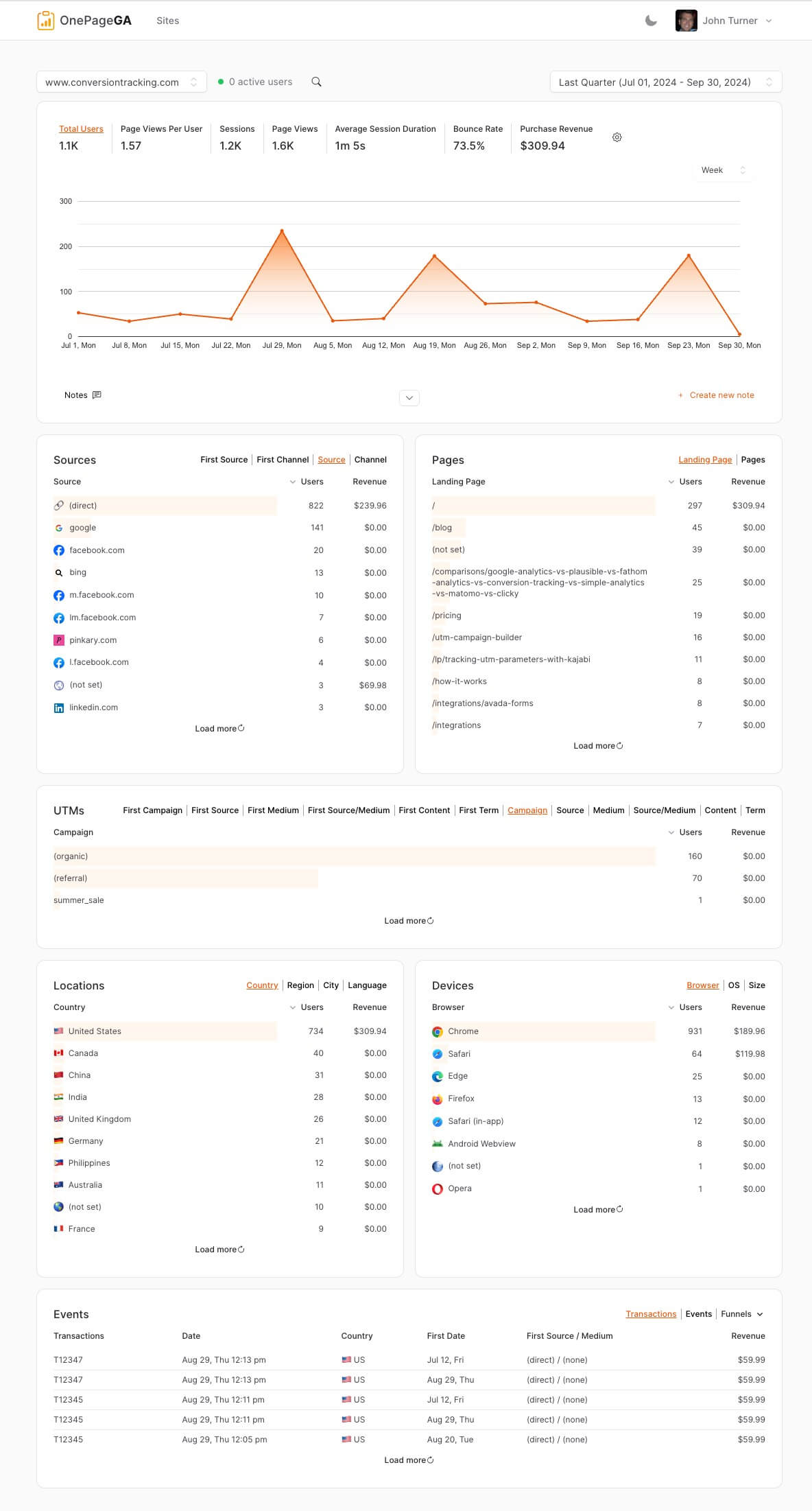
Even though GA4 tracks these automatically, finding the report requires digging through the “Engagement” menu. This is where OnePageGA helps. It’s the simplest Google Analytics dashboard that creates understandable reports in seconds.
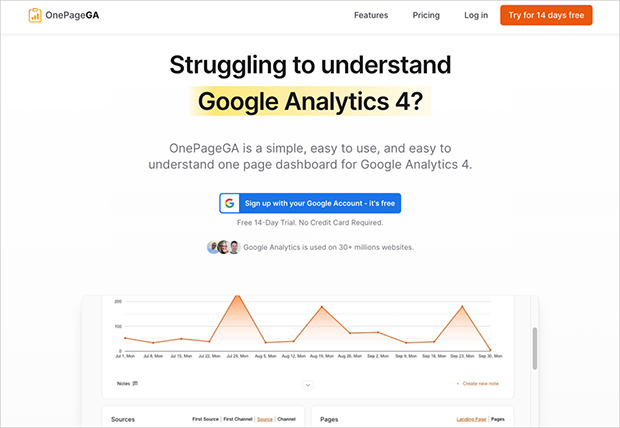
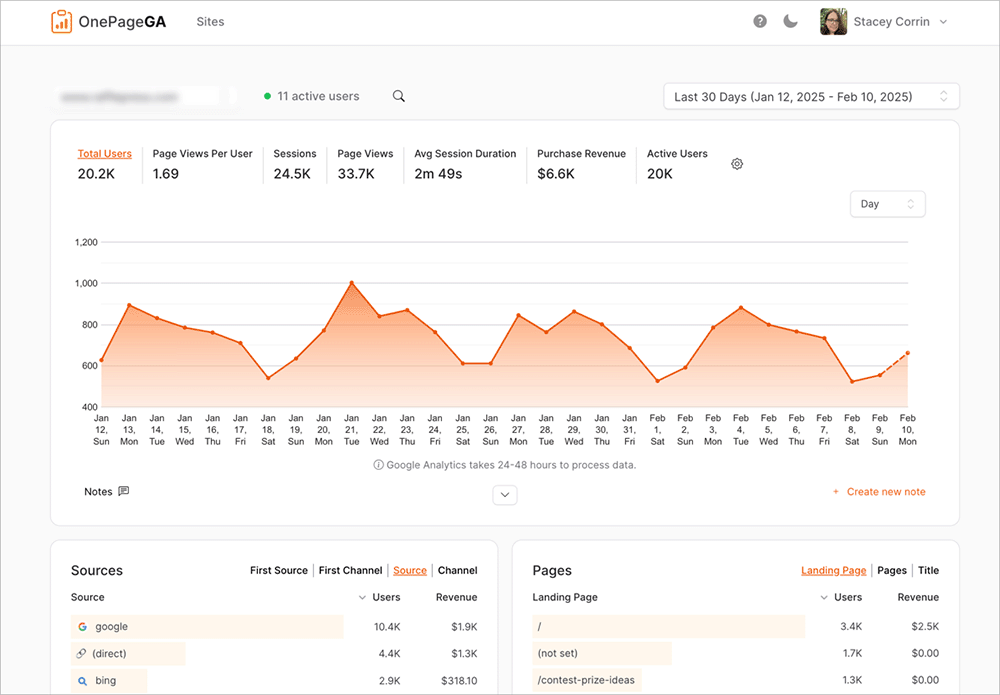
While understanding GA4 events is important, OnePageGA bypasses the confusion by pulling these specific stats to the surface instantly, so you can see your outbound clicks at a glance.
How to Track Specific Buttons in GA4 Manually
To track a button that links to another page on your own site (like your pricing page), you can’t just use the default GA4 settings. GA4 does not automatically track internal link clicks as events.
To fix this, we need to use a free tool called Google Tag Manager (GTM). It acts as a bridge, telling GA4 exactly when a specific click happens.
If you have GTM installed, here is the simple 3-step process to track your pricing button.
Step 1: Create a Trigger
In Google Tag Manager, go to Triggers and click New. This tells the system when to fire the tag. Use these settings:
| Configuration Setting | Value |
|---|---|
| Trigger Type | Click – Just Links |
| Fire On | Some Link Clicks |
| Condition | Click URL contains /pricing |

Step 2: Create the Tag
Now go to Tags and click New. This tells the system what data to send to Analytics. Configure it as follows:
| Configuration Setting | Value |
|---|---|
| Tag Type | Google Analytics: GA4 Event |
| Event Name | pricing_click |
| Trigger | Select the trigger created in Step 1 |

Step 3: Publish
Click the blue Save button in the top right corner. Once you publish the container, your tracking is live.
Where to Actually Find Your GA4 Click Tracking Data?
Don’t panic if you see zeros immediately after setting up click tracking. Historical data takes 24 to 48 hours to populate in the main reports.
Because of this processing delay, you actually need to use two different tools within GA4 depending on your goal. You need one tool to verify your setup works right now, and a different report to analyze your traffic trends later.
How to Test Your Buttons Instantly
Before you trust the data, you need to verify it. Since we used Google Tag Manager, click the Preview button in your GTM workspace first.

This opens your site in a debug mode. Click your pricing button, and you should see the “Tag Fired” message in the GTM window.

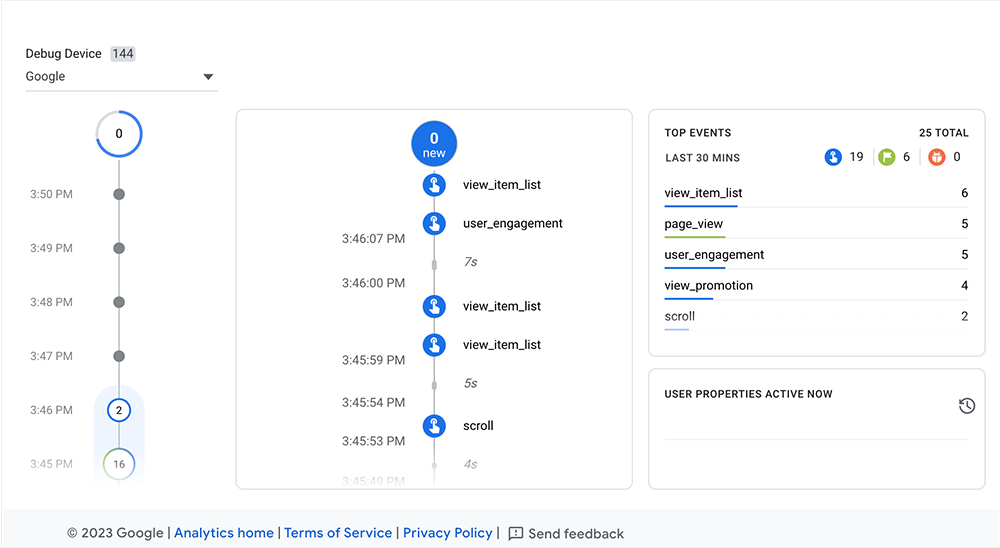
To double-check that GA4 received the signal, go to Admin » DebugView in your Analytics account. You should see the pricing_click event appear on the timeline.
Where to See Total Clicks
Once the data processes (usually the next day), you can find the aggregate numbers in the standard reports.
- Go to Reports » Engagement » Events.
- Scroll down to the main table.
- You’ll see a list of every event, including
click,file_download, and your custompricing_click.

While Google Tag Manager does the heavy lifting of collecting the data, it doesn’t help you read it. To see your results in GA4, you still have to dig through multiple menu layers every time.
This is where OnePageGA shines. It takes that raw data and pulls your top-performing events directly onto a single dashboard.
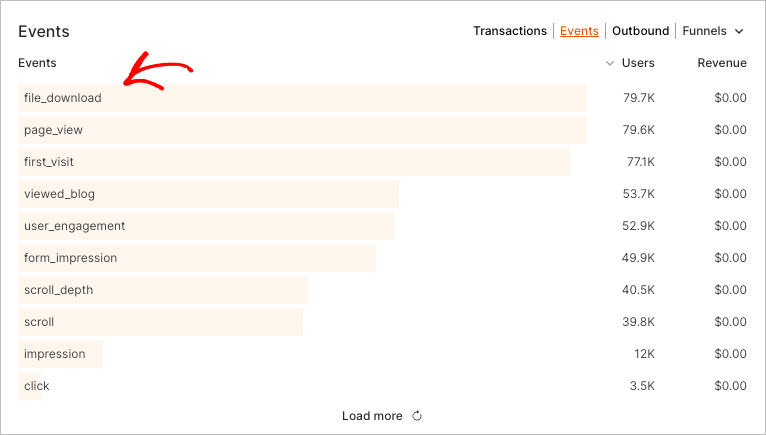
You get the data you need immediately upon logging in and scrolling down to the events section, without digging through the “Engagement” folders.
FAQs on Google Analytics Click Tracking
What types of clicks can I track in GA4?
You can track almost anything with a URL or a button ID. Out of the box, GA4 tracks outbound clicks (links to other sites) and file downloads. For everything else—like internal menu clicks, “Add to Cart” buttons, or slider arrows—you’ll need to set up a custom event.
Can Google Analytics track how often a link is clicked?
Yes, it counts every click as an “event count.” If you look at your “Pages and Screens” report, you generally see page views, but if you look at the “Events” report, you see the raw number of times people physically clicked the links you are tracking.
What’s the difference between internal and external link tracking?
The main difference is effort. GA4 tracks external links (leaving your domain) automatically via Enhanced Measurement. It does not track internal links (moving page-to-page on your site) automatically because it assumes page views cover that. You have to manually tag internal links if you want to measure specific button performance.
Can I track popup or form clicks in GA4?
Yes, but relying on button clicks is often messy. The “Form interactions” setting in GA4 often misfires.
The most reliable way to track forms is to redirect users to a “Thank You” page after they submit. Then, you can simply track views of that specific page URL.
Can I track clicks on sites I don’t own?
No, you can’t. To track a click, your Google Analytics tag ID must be installed on the website where the click happens. If you send traffic to Amazon or a third-party affiliate offer, you can track the click leaving your site, but you cannot see what they do once they land on the other URL.
Key Takeaways
Click tracking is essential for knowing why your site converts (or doesn’t). Without it, you’re essentially guessing which parts of your page are working.
- Start with Enhanced Measurement: It’s free data that catches every outbound link and download automatically.
- Use GTM for Specifics: For internal revenue buttons, use Google Tag Manager to create precise triggers.
- Visualize the Data: Stop getting lost in the “Explore” tab. Use tools like OnePageGA to see your wins at a glance.
You may also find the following Google Analytics guides helpful:
- How to Measure Time on Page in Google Analytics 4
- How to Track Form Submissions in Google Analytics 4
- How to Increase Organic Search Traffic to Your Website
If you have questions or want to join the conversation, you can also find us on X and Facebook.